Plaid Bank Feeds
Setting up a Plaid Bank Feeds Workflow with Rutter
Introduction
Rutter API enables you to get listed as a financial institution in Plaid's Core Exchange network. This allows your customers to sync bank or credit card transactions from the accounts they hold with you into their accounting systems, enabling easy, automated reconciliation and financial automation.
Plaid Core Exchange (PCX) is Plaid's FDX-compliant bank feed protocol. Through a single integration, your institution becomes available to the accounting platforms that Plaid Core Exchange supports.
The workflow involves three main steps:
- Get listed as a financial institution within Plaid's Core Exchange network.
- Onboard your customers within their accounting products to establish a connection between their bank or card account and their accounting instance.
- Continuously sync transaction data, along with contact and payment network information, into Rutter's systems to enable your customers to pull it into their accounting products.
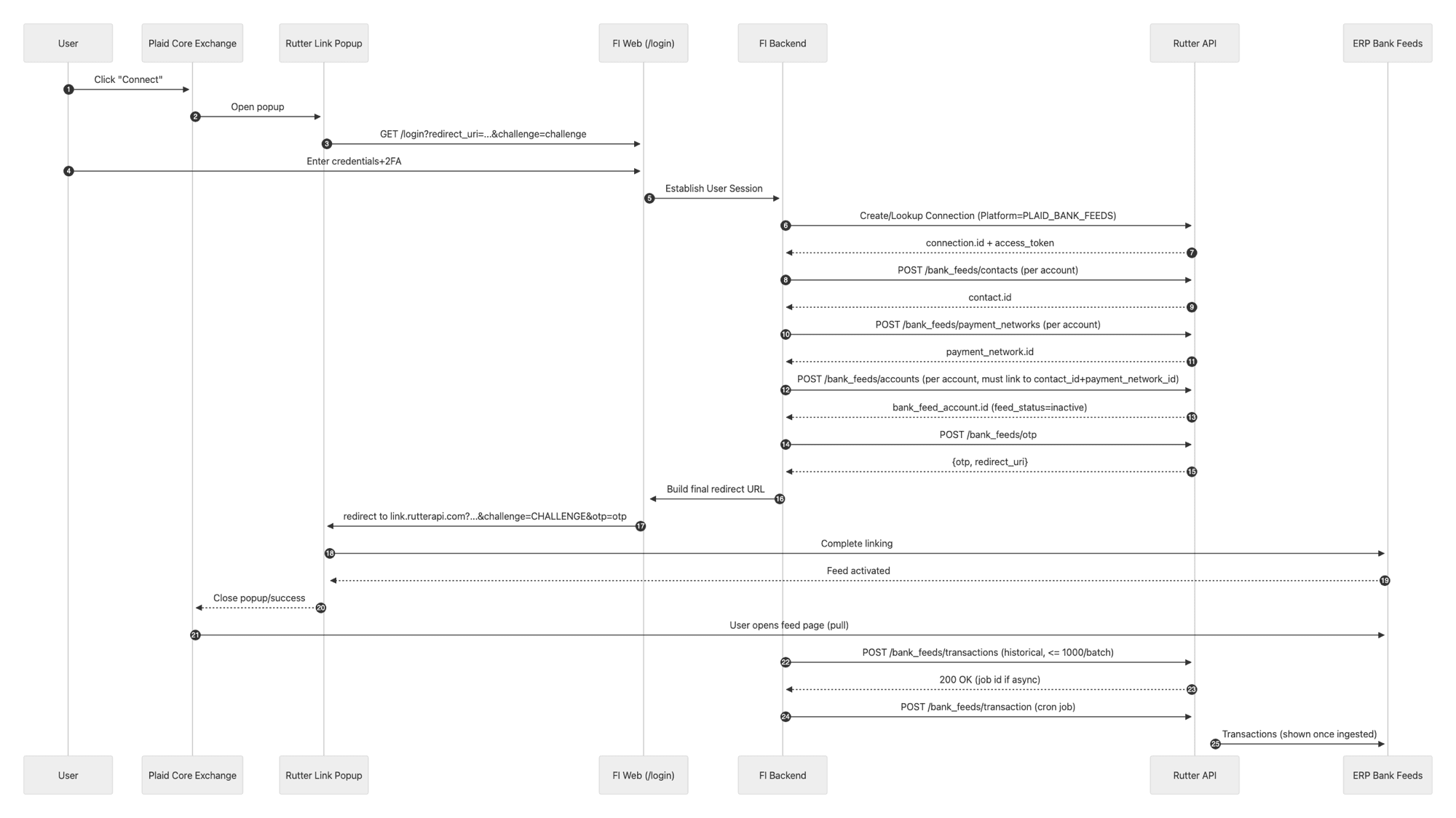
End User Setup Process
Here's an example of the setup flow via Plaid Core Exchange.
Platform Setup
Data Sync Configuration
Make sure to include these Rutter Objects in your Data Sync Configuration through the Rutter dashboard.
- Bank Feed Account
- Bank Feed Transaction
- Bank Feed Contact
- Bank Feed Payment Network
Get listed as a bank within Plaid's Core Exchange network
When your customer wants to set up a Bank Feed between their accounting instance and their bank account, they will need to select you from a list of financial institutions within Plaid's linking flow.
To get listed, please contact your Rutter customer support representative. As part of this setup, provide the Plaid institution_id assigned to your institution. Rutter uses this identifier to keep Plaid's connection state in sync when a Rutter connection is permanently deleted.
Prerequisites
To get started, you will need access to a Rutter dashboard. Please reach out to your Rutter Success Manager and they will help get that set up.
Implementation Steps
Redirect Customers to Your Login Flow
Step 1: Provide a Redirect URL to Rutter
You need to supply Rutter with a redirect URL that points to a user-facing login page on your platform (e.g., my-website.com/login). This URL should be a webpage, not an API endpoint.
To supply Rutter with this URL, in your Rutter Dashboard, head to Platforms > Bank Feeds > Plaid Bank Feeds. Then click "Configure".
Please note: this webpage must not have a Cross-Origin-Opener-Policy header set, as this blocks Plaid's ability to maintain state during the login flow.
Step 2: Rutter Redirects to Your Login URL
When your customer attempts to connect within their accounting product, Rutter will redirect them to the login URL you provided (e.g., my-website.com/login). This will appear as a pop-up screen within the accounting interface.
Step 3: Handling the Redirect URI
When Rutter redirects to the login URL you provide, Rutter will append a redirect_uri parameter to the login URL. After your customer successfully logs in, you will need to redirect to this URL.
For example, if your login URL is my-website.com/login, Rutter would redirect your user to that URL to log in, and append query parameters like this: my-website.com/login?challenge=f0208784-584e-4419-be3e-f34a743a9904&redirect_uri=https://link.rutterapi.com/plaid_bank_feeds_redirect?challenge=f0208784-584e-4419-be3e-f34a743a9904
You do not need to store or use the challenge parameter beyond passing it back to Rutter as part of the redirect URI. The challenge parameter uniquely identifies the connection between your customer's account and Rutter. The redirect URI and associated challenge expire after 10 minutes.
For additional security, we recommend you implement validation on your side to ensure the redirect_uri belongs to the domain link.rutterapi.com.
Alternatively, for a more secure option, you can use the redirect_uri returned as part of the POST /bank_feeds/otp response (see the Enable the Bank Feed Authentication Flow step below). In this case you will need to temporarily store the challenge passed from the Rutter redirect and append it to the redirect_uri as a query parameter along with the OTP when directing back to Rutter.
Step 4: Customer Login
Your customers will log in through your flow (hosted at, e.g. my-website.com/login), during which you can handle any two-factor authentication (2FA) or other security requirements.
Please note: Plaid needs to maintain state during the login flow. For this reason, your login flow must use the same domain throughout the process (i.e., do not redirect users from one domain to another during the flow), and must not have a Cross-Origin-Opener-Policy header set.
Rutter does not have visibility into, or requirements for, the specifics of your login flow. All that is needed is for you to redirect to the correct URL with the appropriate parameters after a successful login.
Link a Rutter Plaid Bank Feeds Connection to Your Customer's Account
After the customer successfully logs in, follow these steps.
Step 1: Create or Retrieve a Rutter Plaid Bank Feeds Connection
Create a new Plaid Bank Feeds connection (if one does not already exist for this customer) by calling our Create Connection API with this JSON body:
1{
2    "platform": "PLAID_BANK_FEEDS"
3}
You must track which Plaid Bank Feeds connections belong to which users on your end. For example, you might maintain a table that maps your customers to Rutter connection IDs:
| CUSTOMER_ID | RUTTER_PLAID_BF_CONNECTION_ID |
|---|---|
| 1 | 40A1E6B3-A2C9-4B4C-ADED-44DBFB2E1F67 |
| 2 | C1A9801B-CF04-4B32-8DA5-358308D059FB |
| 3 | BA490F09-A6BC-4210-9B26-9A8253648705 |
If a connection already exists, move to the next step.
Use the access token returned from the API to make the API requests in the next several steps.
1{
2  "connection": {
3    "id": "00000000-0000-0000-0000-000000000000",
4    "access_token": "00000000-0000-0000-0000-000000000000",
5    "link_url": "https://link.rutterapi.com/connection/00000000-0000-0000-0000-000000000000",
6    "name": "Example Connection"
7  }
8}
Step 2: Create Bank Feed Contacts
Before creating bank feed accounts, you must first create a contact for the account holder. Plaid requires contact_id when creating a bank feed account — the account creation will fail if no contact exists yet. Use Rutter's POST /bank_feeds/contacts API endpoint to supply account holder contact details. Plaid will pull this data via the FDX /contact endpoint when your customer connects.
All four top-level fields are required, each needing at least one item: account_holders, emails, addresses, and phones.
1{
2    "bank_feed_contact": {
3      "account_holders": [
4        {
5          "name": {
6            "first": "John",
7            "middle": "William",
8            "last": "Smith",
9            "suffix": "Jr.",
10            "prefix": "Dr."
11          },
12          "relationship": "PRIMARY"
13        }
14      ],
15      "emails": ["john.smith@example.com"],
16      "addresses": [
17        {
18          "address1": "123 Main Street",
19          "city": "San Francisco",
20          "region": "CA",
21          "postal_code": "94102",
22          "country": "US",
23          "type": "HOME",
24          "primary": true
25        }
26      ],
27      "phones": [
28        {
29          "type": "CELL",
30          "country": "1",
31          "number": "4155551234",
32          "network": "CELLULAR",
33          "primary": true
34        }
35      ]
36    }
37}
Store the id returned in the response — you will need it in Step 4 when creating the bank feed account.
Step 3: Create Bank Feed Payment Networks
Similarly, you must create payment networks before creating bank feed accounts, as payment_network_ids is required on account creation for Plaid. Use Rutter's POST /bank_feeds/payment_networks API endpoint to supply payment network details. Plaid will pull this data via the FDX /payment-networks endpoint when your customer connects.
The bank_id is typically the 9-digit ABA routing transit number (RTN) for US institutions. The identifier is the account number within the payment network.
1{
2    "bank_feed_payment_network": {
3      "bank_id": "010088889",
4      "identifier": "1111222233335820",
5      "type": "US_ACH",
6      "transfer_in": true,
7      "transfer_out": true
8    }
9}
Supported payment network types: CA_ACSS, CA_LVTS, US_ACH, US_CHIPS, US_FEDNOW, US_FEDWIRE, US_RTP.
Store the id returned in the response — you will need it in Step 4 when creating the bank feed account.
Step 4: Create Bank Feed Accounts
Now that a contact and payment network exist, use Rutter's POST /bank_feeds/accounts API endpoint to supply the bank or credit card accounts your customer would like to set up with a Bank Feed. The contact_id and payment_network_ids fields are required for Plaid and must reference the IDs created in Steps 2 and 3.
1{
2    "bank_feed_account": {
3      "internal_bank_account_id": "0674101002388",
4      "transaction_start_date": "2023-02-02T00:00:00.000Z",
5      "bank_account_type": "bank",
6      "currency_code": "USD",
7      "name": "Regan's Bank Account",
8      "available_balance": 1546.23,
9      "bank_account_number": "182237382",
10      "current_balance": 1833.21,
11      "routing_number": "123456789",
12      "contact_id": "00000000-0000-0000-0000-000000000000",
13      "payment_network_ids": [
14        { "id": "00000000-0000-0000-0000-000000000000" }
15      ]
16    }
17}
Step 5: Sync Bank Feed Transaction Data
Once you've created the user's bank feed accounts, you should immediately sync historical transaction data using the POST /bank_feeds/transactions API. Syncing the transactions immediately after account creation ensures the transactions will be ready for your users once they finish the linking flow.
Before syncing, check that the Bank Feed Account is ready by calling GET /bank_feeds/accounts and confirming "transaction_ready": true.
1{
2    "bank_feed_transactions": {
3      "bank_feed_account_id": "00000000-0000-0000-0000-000000000000",
4      "current_balance": 1234.56,
5      "transactions": [
6        {
7          "transaction_id": "ACRAF23DB3C4",
8          "posted_at": "2023-02-02T02:34:56.000Z",
9          "transaction_date": "2023-02-02T02:34:56.000Z",
10          "amount": -300,
11          "description": "Office supplies",
12          "memo": "Staples",
13          "transaction_type": "debit",
14          "debit_credit_memo": "DEBIT"
15        }
16      ]
17    }
18}
After the initial sync is complete, you should sync all posted transactions in real time. Do not send non-posted transactions, as there is a higher chance of them changing and negatively impacting your customers' reconciliation process.
A Note on Transaction Limits
A maximum of 1000 transactions can be sent over in each request. If you have more than 1000 transactions to send over, you should batch 1000 transactions at a time.
Step 6: Enable the Bank Feed Authentication Flow
After completing the steps above, finish redirecting to the Rutter-provided redirect URL. To authenticate the connection, you'll need to generate an OTP and append it to the redirect URL as an additional parameter. The redirect URL already includes a challenge ID as a query parameter. All you need to do is add one more query parameter with the OTP (&otp=OTP_GOES_HERE). For example:
1https://link.rutterapi.com/plaid_bank_feeds_redirect?challenge=f0208784-584e-4419-be3e-f34a743a9904&otp=123456789
The OTP should not be displayed to the user. It is passed back to Rutter so Rutter can link the correct user's accounting account to the correct Rutter connection.
To generate the OTP, use Rutter's POST /bank_feeds/otp API. This endpoint will also return a redirect_uri which can be used in place of the original redirect_uri passed from Rutter. If using this redirect_uri, the challenge passed from Rutter will need to be appended as a query parameter.
1{
2    "bank_feed_otp": {
3      "expires_at": "2023-01-10T00:00:00.000Z",
4      "otp": "00000000-0000-0000-0000-000000000000",
5      "redirect_uri": "https://link.rutterapi.com/plaid_bank_feeds_redirect"
6    }
7}
Once you redirect to Rutter, your customer will be able to finish linking their bank accounts within their accounting product.
Transaction Syncing Rules
- You must provide at least one transaction per sync request.
- Only posted transactions should be submitted.
- Each transaction must have a unique identifier (
transaction_id). The identifier for a transaction must never change. The same transaction identifier should not occur more than once for a Bank Feed Account. - A maximum of 1000 transactions can be sent per request.
Disconnection Handling
When a customer disconnects a bank feed account from within their accounting product:
- The Rutter bank feed connection stays active.
- New transactions can no longer sync to the disconnected account.
- Other connected Rutter bank feed accounts for the same customer are not affected.
If a customer needs to reconnect a disconnected account, they must complete the original linking process again. When this happens, check for an existing Rutter Plaid Bank Feeds connection for that customer and reuse it rather than creating a new one.
Permanently deleting the customer's Rutter Plaid Bank Feeds connection is a different operation. When you call the Delete Connection API, Rutter first revokes every active downstream application through Plaid Permissions Manager and verifies that Plaid reports no applications still connected. If Plaid cannot confirm the revocation, the delete request fails and the Rutter connection remains available so you can retry safely. Disabling a Rutter connection is reversible and does not revoke its Plaid applications.