Sage Intacct Real-Time Webhooks
Overview
By default, Rutter picks up changes in Sage Intacct during Incremental Syncs. With real-time webhooks, Sage Intacct notifies Rutter as soon as a record is created or updated, and Rutter sends you the usual webhooks for that change within seconds.
Sage Intacct real-time webhooks are Sage Intacct Triggers that live in each Sage Intacct company you connect. There are two ways to create them:
- Option 1: Install the webhook package (recommended). You download a package from the Rutter Dashboard and your end user installs it once. It creates every trigger in one step.
- Option 2: Create triggers manually. Your end user creates one trigger per Sage Intacct object.
Who Does What
The setup is split between you and your end user:
- You (the Rutter customer) prepare the setup: download the webhook package for Option 1, or gather the values in Prerequisites and build the webhook URL for Option 2.
- Your end user (the business that owns the Sage Intacct company) installs the package or creates the triggers in their own Sage Intacct company. Triggers live inside each Sage Intacct company, so only a user with Platform Services access to that company can create them.
How It Works
- A record is created or updated in Sage Intacct (e.g., an AP bill is posted)
- The Sage Intacct Trigger on that object sends the event to Rutter, signed with your Sage Intacct application's
client_secret - Rutter verifies the signature and fetches the latest version of the record from Sage Intacct
- Rutter sends your usual webhooks, such as
BILL_CREATEDorBILL_UPDATED, with the same payloads as changes found during an Incremental Sync
Supported Objects
Each Rutter object is driven by a trigger on the listed Sage Intacct object:
| Rutter Object | Sage Intacct Object |
|---|---|
| Accounts | GLACCOUNT, BANKACCOUNT, CHECKINGACCOUNT, SAVINGSACCOUNT, CREDITCARD |
| Bank Deposits | DEPOSIT |
| Bank Transfers | FUNDSTRANSFER |
| Bill Credit Memos | APADJUSTMENT |
| Bill Payments | APPAYMENT |
| Bills | APBILL |
| Classes | CLASS |
| Customers | CUSTOMER, CONTACT |
| Departments | DEPARTMENT |
| Employees | EMPLOYEE |
| Expenses | CCTRANSACTION |
| Invoice Credit Memos | ARADJUSTMENT |
| Invoice Payments | ARPAYMENT |
| Invoices | ARINVOICE |
| Items | ITEM |
| Journal Entries | GLBATCH |
| Locations | LOCATION |
| Projects | PROJECT |
| Subsidiaries | LOCATIONENTITY |
| Tasks | TASK |
| Tax Rates | TAXDETAIL (not delivered in real time, see note below) |
| Vendors | VENDOR |
Tax Rates
Sage Intacct does not run triggers when a tax detail (TAXDETAIL) is edited, so changes to Tax Rates are not delivered in real time. They are picked up during Incremental Syncs.
Prerequisites
- Your Rutter organization ID (Option 2 only). In the Rutter Dashboard, go to Settings → Organization and click Copy Org ID.
- Your Sage Intacct application's
client_id(Option 2 only). Your end user enters it as each trigger's Client ID. It's the sameclient_idsaved for Sage Intacct (v2) in the Rutter Dashboard. It isn't secret, but never share theclient_secret. - An active Rutter Connection for the Sage Intacct company. Rutter matches each event to Connections by Sage Intacct company ID, so events from a company with no Connection are ignored.
Option 1: Install the Webhook Package (Recommended)
The webhook package is a Sage Intacct Platform Services application that creates a trigger and template for every Supported Object. Each package is built for one Rutter Connection and leaves out any object that Sage Intacct company does not have, for example PROJECT when the Projects module is not enabled.
You do Step 1. Your end user does Step 2 in their own Sage Intacct company.
Step 1: Download the Package
- In the Rutter Dashboard, go to Platforms and open Sage Intacct (v2).
- Open the Webhooks tab.
- Find the Connection for the Sage Intacct company and click Download Webhook Package.
- Send the downloaded
.xmlfile to your end user.
The package uses the client_id saved for Sage Intacct (v2) in the Rutter Dashboard, so save your Sage Intacct application's client_id and client_secret there first (see our Sage Intacct v2 Guide).
Step 2: Install the Package
- In Sage Intacct, go to Platform Services → Applications.
- Click Install from XML, select the package file, and confirm the install.
The triggers are active as soon as the install finishes. To pick up objects added in a newer package, install the new file the same way; it updates the existing application in place.
Option 2: Create Triggers Manually
You do Step 1. Your end user does Steps 2 to 6 in their own Sage Intacct company.
Step 1: Build Your Webhook URL
Every trigger posts to the same Rutter URL. Replace <YOUR_ORGANIZATION_ID> with your Rutter organization ID. One URL serves every Sage Intacct company connected to your Rutter organization.
1https://production.rutterapi.com/versioned/webhooks/ingest/sage_intacct_v2?oid=<YOUR_ORGANIZATION_ID>&version=2025-02-28
Send your end user this URL and your Sage Intacct client_id.
Step 2: Create a Trigger on the Object
- In Sage Intacct, go to Platform Services → Objects.
- Select one of the Supported Objects (for example, AP bill for Bills).
- Open the Triggers tab and click New trigger. If the object has no Triggers tab, it does not support triggers.
- Select HTTP post as the trigger type and click Next.

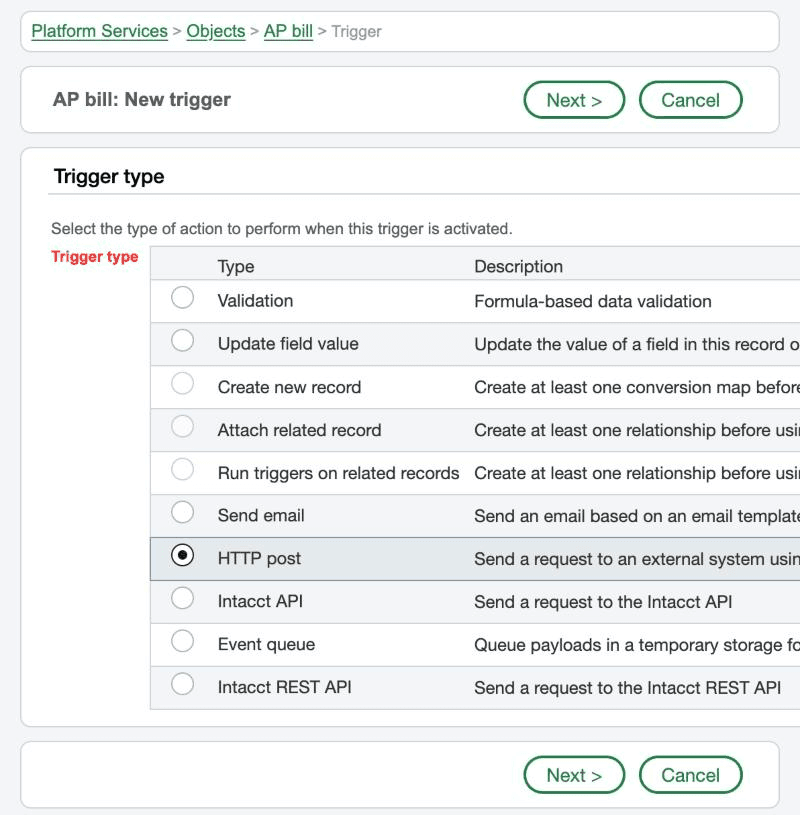
Step 3: Configure the Trigger
Fill in the trigger fields as follows:
| Field | Value |
|---|---|
| This trigger is deployed | Enabled. The trigger does not fire otherwise. |
| Trigger activation | After create and After update |
| Trigger name | Something descriptive, for example Rutter - AP Bill |
| Use webhook delivery | Enabled |
| Client ID | The Sage Intacct client_id from Prerequisites |
| Encoding | JSON |
| Target URL | The webhook URL from Step 1 |
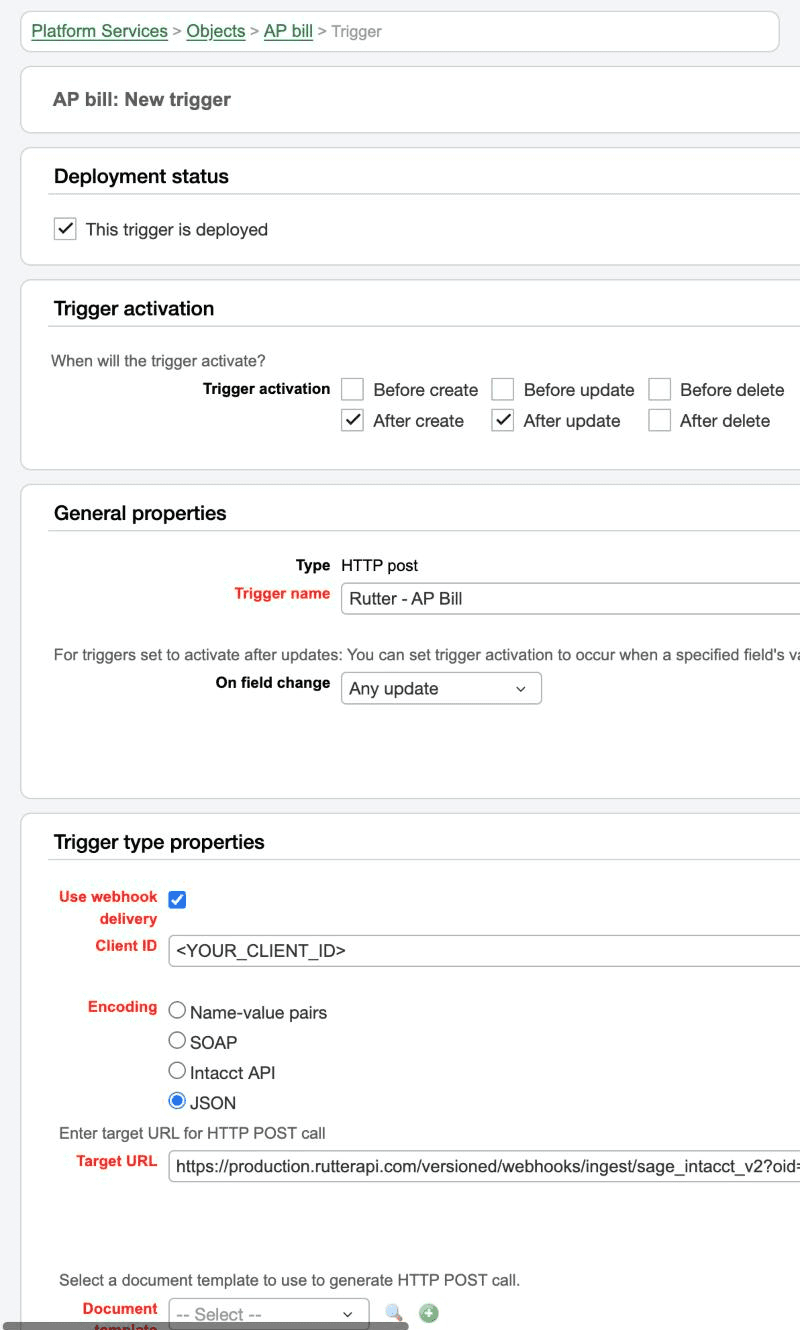
The Client ID must match your Rutter Dashboard
Sage Intacct signs each delivery with the client_secret of the application whose Client ID is set on the trigger. Rutter verifies that signature against the client_secret saved in the Rutter Dashboard and rejects any request that fails, so the trigger's Client ID must belong to that same application.
Step 4: Assign an HTTP Post Template
A trigger does not fire until it has a document template. The template tells Rutter which record changed.
- Next to Document template, click + to create a new template and enter a template name.
- Set Template type to HTTP post.
- Set the template body to the snippet below, replacing
APBILLwith the object's name from Supported Objects. - Save the template and select it on the trigger.
1{"key": "{!APBILL.RECORDNO!}"}
Step 5: Set the Condition Formula and Save
- Set Trigger condition formula to
trueso the trigger fires for every event on the object. You can narrow it later, for example to posted invoices only. - Save the trigger.
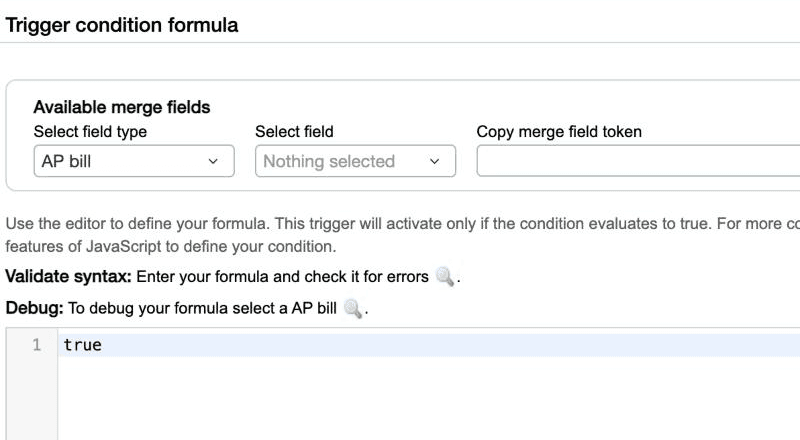
Step 6: Repeat for Every Object
Repeat Steps 2 to 5 of Option 2 for every Sage Intacct object in Supported Objects that you want real-time updates for. Each object needs its own trigger and its own template.
Deletions
Deletions are not delivered through real-time webhooks for Sage Intacct. Deleted records are detected during Incremental Syncs; see Monitoring Deleted Objects.
FAQ
1. Why am I not receiving webhooks after a change in Sage Intacct?
If you installed the webhook package, check that the Rutter Real-Time Webhooks application appears in Platform Services → Applications and that the object is in the package; objects the company did not have when you downloaded it are left out. For manual triggers, check that the trigger is deployed, has a document template assigned, and that its condition formula evaluates to true for the change. Also confirm the Sage Intacct company has an active Rutter Connection.
2. Why are events from my trigger rejected?
The trigger's Client ID belongs to a different Sage Intacct application than the client_id and client_secret saved in the Rutter Dashboard. Update the trigger's Client ID to match.
3. Why does the Dashboard say Rutter can't access the Sage Intacct company?
Rutter checks which objects the company has before building the package. If that check fails, the Connection usually needs to be reauthorized. Reconnect it through Rutter Link, then download the package again.
4. What happens if Rutter is temporarily unavailable?
Sage Intacct retries a delivery up to 4 times if it does not receive a successful response.